In this article
Job, scholarship and administrative applications often ask for “a single file” containing your ID, certificates and CV. On the other hand, you may receive an 80-page report when you only need one chapter. Three simple operations solve all of this: merging, splitting and organizing.
1. Merge: many files into one
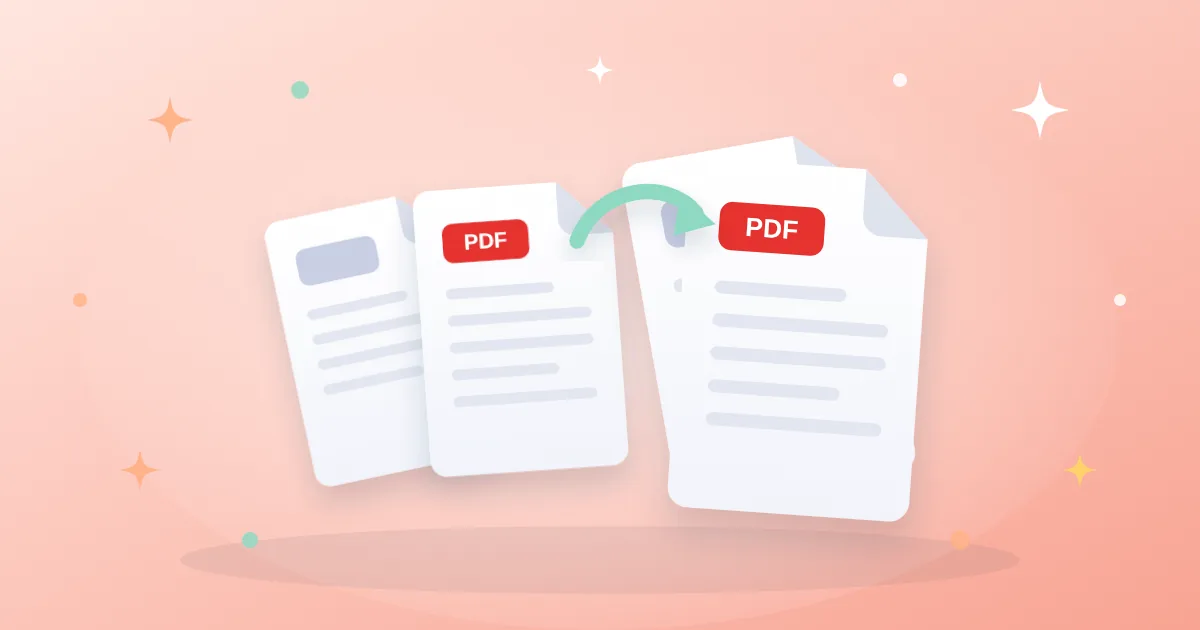
Use the Merge PDF tool when you need to send several documents as one tidy file.
- Drag files into the order the reader expects before merging: cover letter, then CV, then attachments.
- Give the result a clear name such as
application-john-smith.pdf. - If some documents are photos (an ID card, for example), convert them first with JPG to PDF.
2. Split: keep only what you need
With the Split PDF tool you can:
- Extract a specific page range, like 12–18.
- Save every page as its own file — handy for invoices scanned in one batch.
- Break a huge file into smaller parts that fit an upload limit.
3. Organize: delete, rotate and reorder
Quick scanning produces upside-down pages, wrong order or blank sheets. The Organize PDF tool shows page thumbnails so you can drag them into place and delete extras. To fix a sideways page, use Rotate PDF.
A suggested workflow
- Collect all documents and convert any images to PDF.
- Merge them into one file.
- Open the merged file in the organizer: remove blanks, fix upside-down pages.
- Add page numbers if the file is long.
- Compress the final file if it exceeds the required limit.
Time-saving tips
- A password-protected file won’t merge; unlock it first if you own the password.
- Check the result page by page before sending, especially for official applications.
- Keep the original files separately — you may need to replace a single document later.
Bottom line
Merge to combine, split to extract, organize to clean up. Used together they give you a professional, well-ordered file that’s easy for the recipient to read — all inside your browser, without uploading personal documents to a server.