In this article
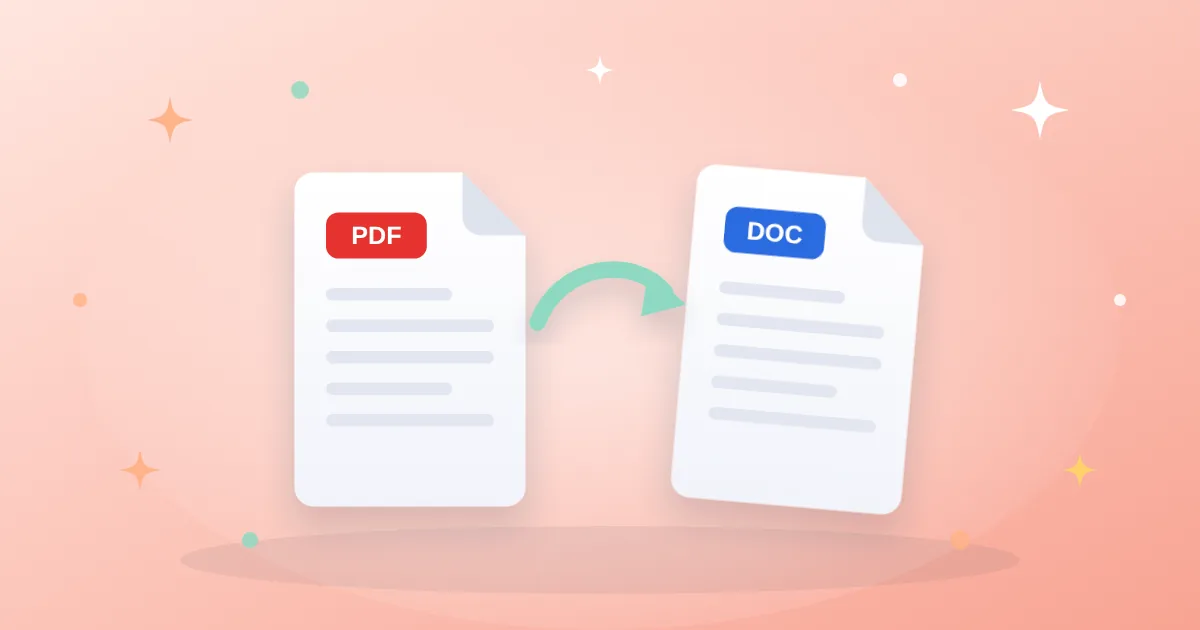
You’ve received a contract or form as a PDF and need to change a few paragraphs. The obvious fix is converting it to Word — but results vary wildly: sometimes perfect, sometimes a mess of text boxes. The secret is knowing which kind of file you have.
Two kinds of PDF
- Digital (text) PDF: created from Word or a design app. You can select and copy text. These convert very accurately.
- Scanned PDF: pictures of paper pages. You can’t select the text; it needs optical character recognition (OCR) first.
Quick test: try to select a word. If it highlights, it’s a text PDF. If the whole page highlights like an image, it’s scanned.
Converting a text PDF
- Open the PDF to Word tool and choose your file.
- Download the DOCX and open it in Word, Google Docs or LibreOffice.
- Check headings and tables — they’re the elements most likely to need a manual touch.
Converting a scanned PDF
- Run the file through the OCR tool first, choosing the right document language.
- Copy the extracted text into a new document, or convert the file once it has a text layer.
- Proofread numbers and names carefully; OCR can confuse similar-looking characters.
Why does the layout change?
A PDF fixes the exact position of every character on the page, while Word is built on flowing paragraphs. During conversion the software has to “guess” paragraphs, columns and tables. That’s why:
- Multi-column layouts and magazines convert less precisely than simple reports.
- Fonts not installed on your device get substituted, changing line lengths.
- Right-to-left text mixed with numbers or Latin words may need its paragraph direction adjusted.
Do you even need Word?
For a small change like fixing a date or adding a name, it may be faster to use the Edit PDF tool directly. If you just need to fill in form fields, try PDF Forms.
Bottom line
Identify the file type first: text PDFs convert directly, scanned ones need OCR. Expect some manual touch-ups on complex layouts, and edit directly when the change is small. When you’re done, turn the document back into a PDF with Word to PDF.